Chrome Tab Manager vs “Fewer Tabs”: A Practical Workflow (NoTab)
If you’ve ever searched for a Chrome tab manager or installed a top-rated tab organizer extension, hoping to fix your browser chaos, you probably noticed a frustrating reality: you still end up with 40+ tabs.
You aren't doing it wrong. You are just using a tool that solves a different problem.
- A tab manager is great at saving and organizing the mess you've already made.
- A “fewer tabs” workflow helps you avoid making the mess in the first place.
This post introduces a simple, repeatable workflow that combines the best of both worlds: keep your favorite tab manager for long-term storage, but use NoTab to preview links instantly so you can filter out the noise before it becomes a tab.
The Trap: Why "Managing" Isn't Enough
A good Google Chrome tab manager (like OneTab or Toby) is excellent for:
- Saving a session before a reboot.
- Grouping research tabs by project.
- Restoring work across different days.
But even the best Chrome tab manager extension cannot fix the root cause of tab overload:
The "Check-It-Later" Habit: Most tabs are opened "just to quickly check something"—and then never closed because the friction of deciding to close them is too high.
This is why many users end up installing more tooling (a tab saver + groups + vertical tabs) while their browser memory usage keeps climbing.
The Solution: Preview First, Commit Later
The "Fewer Tabs" philosophy is simple: Treat opening a new tab as a commitment.
| Old Way (Tab Manager Only) | New Way (NoTab + Manager) |
|---|---|
| Click link -> New Tab | Preview link on current page |
| "I'll read this later" | "Is this useful?" -> Yes/No instantly |
| Result: 50 tabs to organize | Result: 5 tabs of actual value |
This is exactly where NoTab fits into your stack.

NoTab: The Gatekeeper for Your Tabs
NoTab isn't a replacement for your storage; it's a firewall against clutter. It is a browser extension designed to reduce context switching:
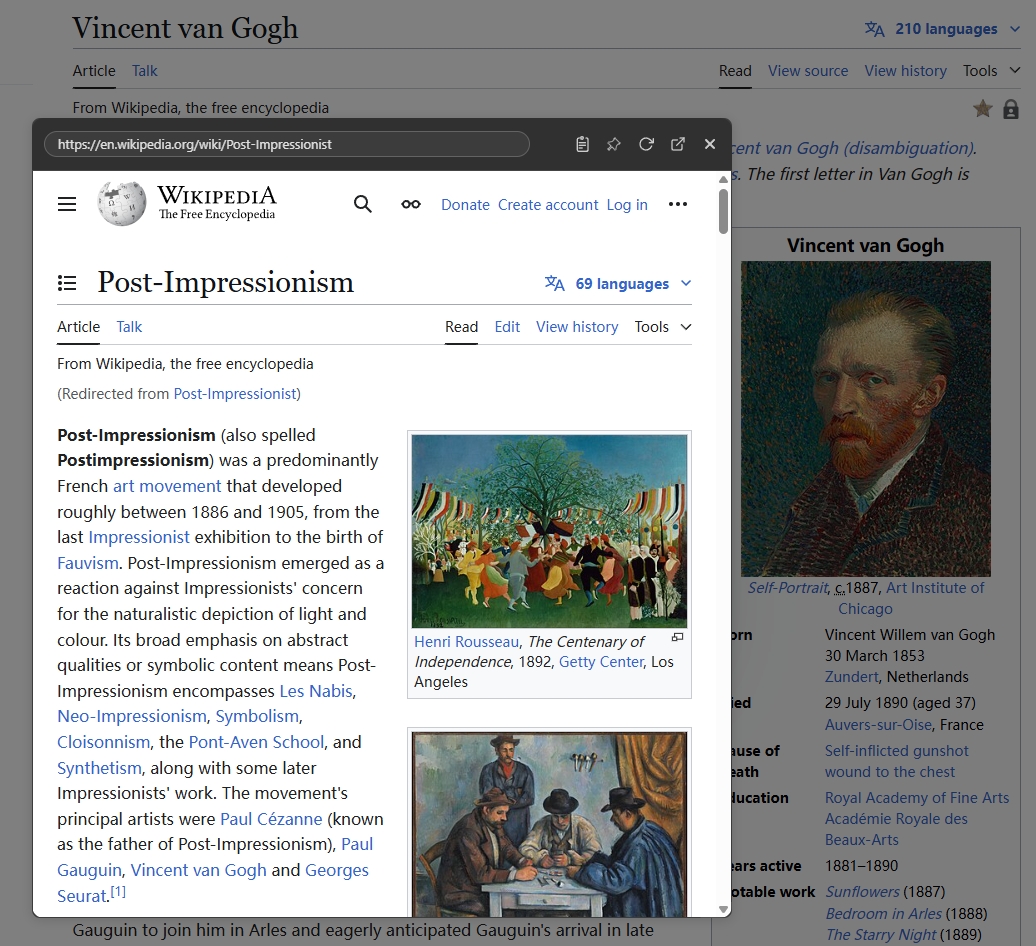
- Preview links instantly: Drag-and-drop or right-click to see content without leaving your current page.
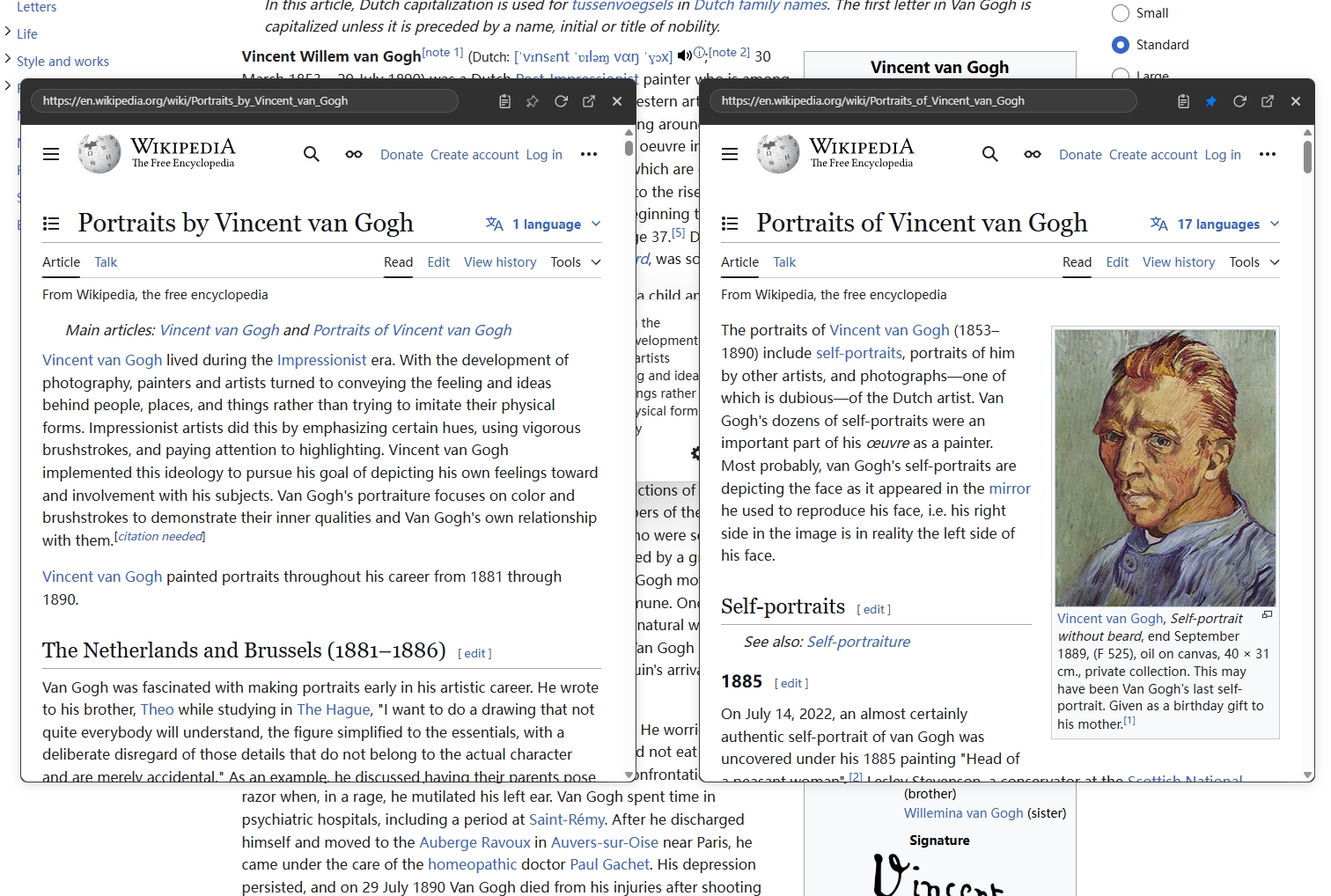
- Side-by-side Comparison: Open multiple resizable floating windows to compare products or search results.
- Nested Browsing: Click links inside the preview window to keep going down the rabbit hole without spawning tabs.
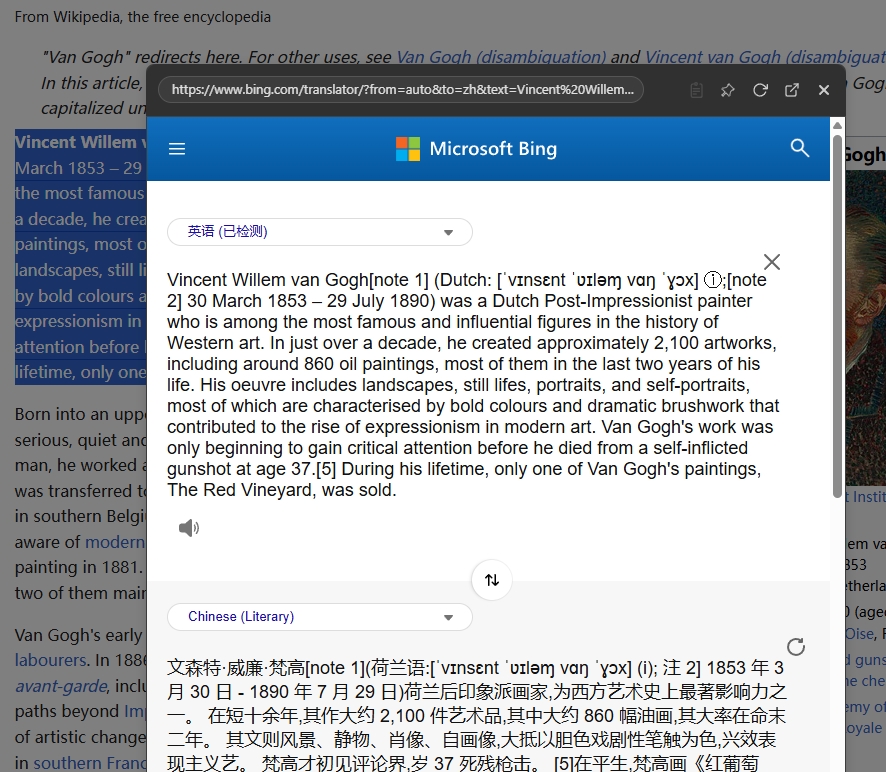
- Utility Tools: Quick Search and Quick Translate text by simply selecting and dragging.
Here represents the core "preview before you tab" action:
The Practical Workflow: How to Combine Them
This workflow works perfectly for deep research, shopping comparisons, or reading documentation.
Step 1: Triage with NoTab (The Filter)
When you are on a Google search results page or a Reddit thread:
- Don't
Ctrl+Clickeverything. - Preview the link with NoTab.
- Decide in 5 seconds: Skip or Keep.
This single habit is the biggest difference between "I need a tab manager" and "I have a clean browser."
Step 2: Compare Without the "Tab Explosion"
Instead of opening 6 tabs to compare prices or specs:
- Open multiple NoTab preview windows.
- Arrange them side-by-side on your current page.
- Close the losers immediately.
Step 3: Promote to Tab (Deep Work)
Open a full new tab only when the content requires focused reading or long-term action.
- Preview window = "Checking / Browsing"
- New tab = "Working / Reading"
Step 4: Save Intentionally (The Storage)
Now that you only have high-quality tabs open, your tab manager can actually do its job.
- Need it next week? Save it to your tab saver Chrome extension.
- Need it forever? Bookmark it.
Step 5: Quick Lookups (No "One-Off" Tabs)
A huge percentage of tabs are created just to define a word or translate a sentence.
Use NoTab's Quick Search or Quick Translate to get the answer in a popup, then close it. No tab residue left behind.
FAQ
Is NoTab a Chrome tab manager?
No. NoTab is not a traditional Chrome tab manager or tab organizer. It is a link previewer that reduces the need for those tools by helping you open fewer tabs in the first place.
Can I use NoTab with a tab saver extension?
Yes! They are perfect partners. Use NoTab to filter out low-value links, and use your tab saver Chrome extension (like OneTab) to store the high-value pages you want to keep for later.
Does previewing a link count as opening a tab?
No. NoTab loads the page inside a floating window on your current tab. It uses less memory and keeps your tab bar clean.
What is the best Chrome tab manager?
The best Google Chrome tab manager is the one you actually use. However, regardless of which one you choose, adding NoTab to your workflow makes that manager more effective by feeding it less garbage.
Try the Workflow
If your browser feels like a never-ending battle against clutter, stop just managing it. Start preventing it.
Install NoTab for Free and start previewing links today.